

Documentation Index
Fetch the complete documentation index at: https://cometchat-22654f5b-docs-android-v6-beta2.mintlify.app/llms.txt
Use this file to discover all available pages before exploring further.
Quick Reference - Generate token and start a call session:
Overview
This section demonstrates how to start a call session in a React Native application. Previously known as Direct Calling.Available via: SDK | UI Kits
If you want to implement a complete calling experience with ringing functionality (incoming/outgoing call UI), follow the Ringing guide first. Once the call is accepted, return here to start the call session.
Generate Call Token
A call token is required for secure access to a call session. Each token is unique to a specific session and user combination, ensuring that only authorized users can join the call. Use thegenerateToken() method to create a call token:
- JavaScript
- TypeScript
| Parameter | Description |
|---|---|
sessionId | The unique random session ID. In case you are using the ringing flow, the session ID is available in the Call object. |
userAuthToken | The user auth token from CometChat.getLoggedinUser().getAuthToken() |
Start Call Session
Use theCometChatCalls.Component to render the call UI. This component requires a call token and a CallSettings object.
- JavaScript
- TypeScript
| Parameter | Description |
|---|---|
callToken | The GenerateToken object received from generateToken() onSuccess |
callSettings | Object of CallSettings class configured via CallSettingsBuilder |
Call Settings
Configure the call experience using the followingCallSettingsBuilder methods:
| Method | Description |
|---|---|
enableDefaultLayout(boolean) | Enables or disables the default call UI layout. Default: true |
setIsAudioOnlyCall(boolean) | Sets whether the call is audio-only or audio-video. Default: false |
setCallEventListener(OngoingCallListener) | Sets the listener to receive call events. |
setMode(string) | Sets the call UI layout mode. Available: DEFAULT, SPOTLIGHT, SINGLE. Default: DEFAULT |
setAvatarMode(string) | Sets how avatars are displayed when video is off. Available: circle, square, fullscreen. Default: circle |
setDefaultAudioMode(string) | Sets the initial audio output device. Available: SPEAKER, EARPIECE, BLUETOOTH, HEADPHONES |
startWithAudioMuted(boolean) | Starts the call with the microphone muted. Default: false |
startWithVideoMuted(boolean) | Starts the call with the camera turned off. Default: false |
showEndCallButton(boolean) | Shows or hides the end call button. Default: true |
showSwitchCameraButton(boolean) | Shows or hides the switch camera button. Default: true |
showMuteAudioButton(boolean) | Shows or hides the mute audio button. Default: true |
showPauseVideoButton(boolean) | Shows or hides the pause video button. Default: true |
showAudioModeButton(boolean) | Shows or hides the audio mode selection button. Default: true |
showSwitchToVideoCallButton(boolean) | Shows or hides the button to upgrade an audio call to video. Default: true |
setMainVideoContainerSetting(MainVideoContainerSetting) | Customizes the main video container. See Video View Customization. |
enableVideoTileClick(boolean) | Enables or disables click interactions on video tiles in Spotlight mode. Default: true |
enableVideoTileDrag(boolean) | Enables or disables drag functionality for video tiles in Spotlight mode. Default: true |
setIdleTimeoutPeriod(number) | Sets idle timeout in seconds. Default: 180 seconds. v4.2.0+ |
Call Listeners
TheOngoingCallListener provides real-time callbacks for call session events.
You can register listeners in two ways:
- Via CallSettingsBuilder: Use
.setCallEventListener(listener)when building call settings - Via addCallEventListener: Use
CometChatCalls.addCallEventListener(listenerId, listener)to add multiple listeners
- JavaScript
- TypeScript
Events
| Event | Description |
|---|---|
onCallEnded() | Invoked when the call session terminates for a 1:1 call. |
onSessionTimeout() | Invoked when the call is auto-terminated due to inactivity. v4.2.0+ |
onCallEndButtonPressed() | Invoked when the local user taps the end call button. |
onUserJoined(user) | Invoked when a remote participant joins. |
onUserLeft(user) | Invoked when a remote participant leaves. |
onUserListUpdated(userList) | Invoked whenever the participant list changes. |
onAudioModesUpdated(audioModes) | Invoked when available audio devices change. |
onCallSwitchedToVideo(event) | Invoked when an audio call is upgraded to video. |
onUserMuted(event) | Invoked when a participant’s mute state changes. |
onScreenShareStarted() | Invoked when the local user starts sharing a screen. |
onScreenShareStopped() | Invoked when the local user stops sharing a screen. |
onError(error) | Invoked when an error occurs during the call session. |
End Call Session
Ringing Flow
When using the Ringing flow, you must coordinate between the CometChat Chat SDK and the Calls SDK.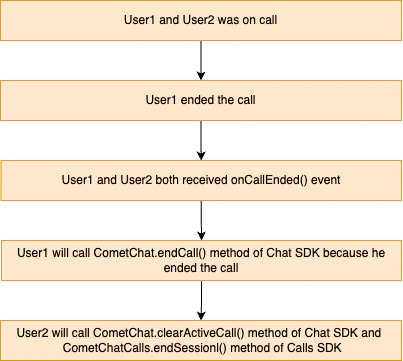
- JavaScript
- TypeScript
onCallEnded() callback):
- JavaScript
- TypeScript
Session Only Flow
When using the Session Only flow (direct call without ringing), callCometChatCalls.endSession() in the onCallEndButtonPressed() callback.
- JavaScript
- TypeScript
Methods
These methods are available for performing custom actions during an active call session.These methods can only be called when a call session is active.
Switch Camera
Mute Audio
Pause Video
Set Audio Mode
Switch To Video Call
Get Audio Output Modes
End Call
Best Practices
Best Practices
- Generate call tokens just before use — they are session-specific and time-limited
- Always handle call end in both flows: Ringing requires both
CometChat.endCall()andCometChatCalls.endSession() - Clean up listeners on component unmount to prevent memory leaks
- Wrap the call component in a full-screen container with
height: '100%',width: '100%', andposition: 'relative' - Use unique listener IDs per component instance
Troubleshooting
Troubleshooting
- Call token generation fails: Ensure the user is logged in and the auth token is valid
- Call UI does not render: Verify the
CometChatCalls.Componentis wrapped in aViewwith explicit dimensions - Listeners not firing: Check that the listener is registered before the call session starts
- onCallEnded not triggered in group calls: The callback only fires for 1:1 calls (exactly 2 participants)
- Audio or video not working: Check device permissions for camera and microphone
Next Steps
Ringing
Implement a complete calling experience with incoming and outgoing call UI
Recording
Record call sessions for playback and compliance
Video View Customisation
Customize the main video container and participant tiles
Presenter Mode
Enable screen sharing and presenter layouts in calls