Documentation Index Fetch the complete documentation index at: https://cometchat-22654f5b-docs-android-v6-beta2.mintlify.app/llms.txt
Use this file to discover all available pages before exploring further.
React UI Kit Sample App Reference implementation of React UI Kit, FCM and Push Notification Setup.
What this guide covers
CometChat dashboard setup (FCM provider + Provider ID) and Firebase web config + VAPID key.
Service worker + Firebase Messaging wiring for foreground/background pushes.
Token registration/unregistration with CometChatNotifications and navigation on notification click.
Testing and troubleshooting tips for web push.
How CometChat + FCM work on web
Provider ID : Tells CometChat which Firebase credentials to use when sending to your web app.Tokens : getToken returns a browser token (per origin/device). Register it after login:
CometChatNotifications.registerPushToken(token, CometChatNotifications.PushPlatforms.FCM_WEB, providerId).Handlers : Foreground messages come via messaging.onMessage; background uses firebase-messaging-sw.js with onBackgroundMessage.Navigation : Service worker sends a postMessage or focuses the client; the app routes to the right view.
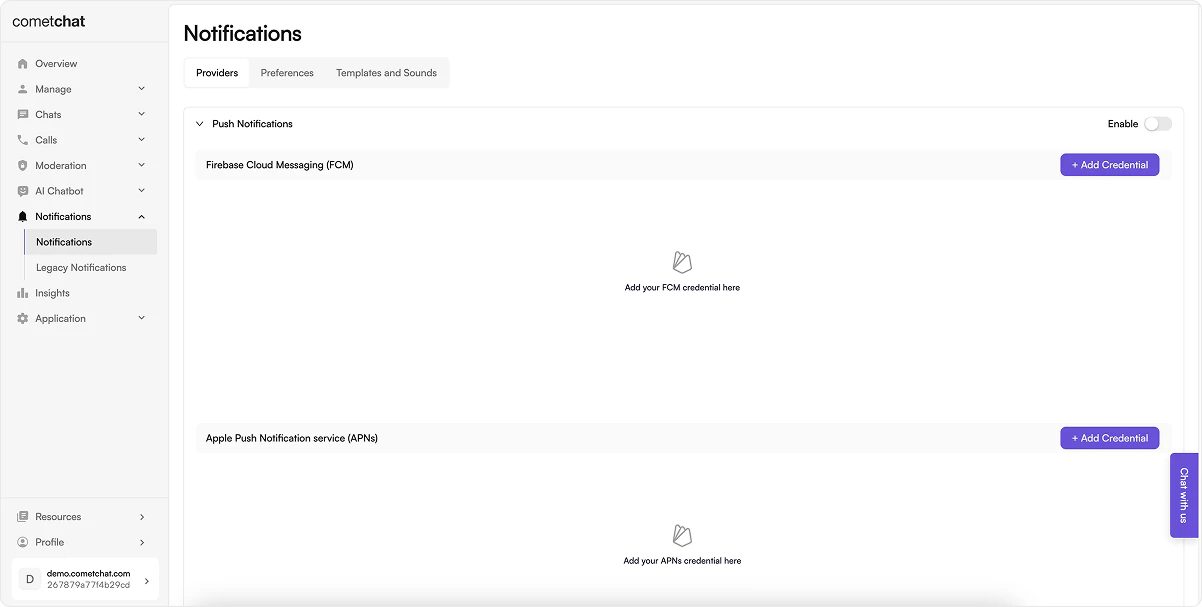
1. Dashboard: enable push + add FCM provider
Go to Notifications → Settings and enable Push Notifications .
Add/configure an FCM provider and copy the Provider ID (used in code).
2. Firebase setup (web app + VAPID)
In Firebase Console, create/select a project.
Add a Web app (</>), copy the Firebase config object.
In Project settings → Cloud Messaging , generate/copy the VAPID key under Web Push certificates.
3. Install dependencies Install firebase SDK:
npm install firebase@^10.3.1
4. Constants File: src/AppConstants.js (or equivalent)
Set the CometChat Constants from your dashboard and Firebase config + VAPID key.
export const COMETCHAT_CONSTANTS = { APP_ID: "" , REGION: "" , AUTH_KEY: "" , FCM_PROVIDER_ID: "" , }; export const FIREBASE_CONFIG = { apiKey: "" , authDomain: "" , projectId: "" , storageBucket: "" , messagingSenderId: "" , appId: "" , measurementId: "" }; export const FIREBASE_VAPID_KEY = "" ; File: src/firebase.js (or equivalent)
This code:
Initializes Firebase app and messaging.
Requests notification permission, fetches FCM token, and registers it with CometChat after login.
Sets up foreground message handler to show notifications.
import { initializeApp } from "firebase/app" ; import { getMessaging , getToken , onMessage } from "firebase/messaging" ; import { CometChatNotifications } from "@cometchat/chat-sdk-javascript" ; import { COMETCHAT_CONSTANTS , FIREBASE_CONFIG , FIREBASE_VAPID_KEY } from "./AppConstants" ; let messagingInstance = null ; export default async function firebaseInitialize ( navigate ) { try { // Check if Firebase is already initialized let app ; try { app = initializeApp ( FIREBASE_CONFIG ); } catch ( error ) { // Firebase might already be initialized const { getApps } = await import ( "firebase/app" ); const apps = getApps (); if ( apps . length > 0 ) { app = apps [ 0 ]; } else { throw error ; } } messagingInstance = getMessaging ( app ); // Check notification permission first if ( Notification . permission === "default" ) { return ; } if ( Notification . permission !== "granted" ) { return ; } // Get FCM token const currentToken = await getToken ( messagingInstance , { vapidKey: FIREBASE_VAPID_KEY , }); if ( currentToken ) { // Check if user is logged in before registering const { CometChat } = await import ( "@cometchat/chat-sdk-javascript" ); const loggedInUser = await CometChat . getLoggedinUser (); if ( ! loggedInUser ) { return ; } // Register push token with CometChat try { const payload = await CometChatNotifications . registerPushToken ( currentToken , CometChatNotifications . PushPlatforms . FCM_WEB , COMETCHAT_CONSTANTS . FCM_PROVIDER_ID ); } catch ( err ) { console . error ( "Firebase initialization error:" , err ); } } else { console . error ( "No registration token available. Request permission to generate one." ); } } catch ( err ) { console . error ( "Firebase initialization error:" , err ); } // Set up foreground message handler if ( messagingInstance ) { onMessage ( messagingInstance , function ( payload ) { // Show notification when app is in foreground if ( Notification . permission === "granted" ) { const notificationTitle = payload . data ?. title || "New Message" ; let notificationBody = payload . data ?. body || "" ; // Handle call notifications if ( payload . data ?. type === "call" ) { switch ( payload . data . callAction ) { case "cancelled" : notificationBody = "Call cancelled" ; break ; case "initiated" : notificationBody = `Incoming ${ payload . data . callType } call` ; break ; default : break ; } } const notificationOptions = { body: notificationBody , icon: payload . data ?. senderAvatar || "/logo192.png" , data: payload . data , tag: payload . data ?. tag , requireInteraction: false , }; new Notification ( notificationTitle , notificationOptions ); } }); } } // Function to register push token after login export async function registerPushTokenAfterLogin () { if ( ! messagingInstance ) { return ; } try { const currentToken = await getToken ( messagingInstance , { vapidKey: FIREBASE_VAPID_KEY , }); if ( currentToken ) { const payload = await CometChatNotifications . registerPushToken ( currentToken , CometChatNotifications . PushPlatforms . FCM_WEB , COMETCHAT_CONSTANTS . FCM_PROVIDER_ID ); } } catch ( err ) { console . error ( "Error registering push token after login:" , err ); } }
Use your VAPID key in getToken calls.
5. Service worker (background pushes) File: public/firebase-messaging-sw.js
This code:
Initializes Firebase app in the service worker.
Handles background messages with onBackgroundMessage.
Manages notification clicks to focus the app and send data for navigation.
Ensure your app registers the service worker (e.g., in index.tsx) and listens for message events to navigate.
/* eslint-disable no-restricted-globals */ /* eslint-disable no-undef */ // required to setup background notification handler when browser is not in focus or in background and // In order to receive the onMessage event, app must define the Firebase messaging service worker // self.importScripts("localforage.js"); importScripts ( "https://www.gstatic.com/firebasejs/9.15.0/firebase-app-compat.js" ); importScripts ( "https://www.gstatic.com/firebasejs/9.15.0/firebase-messaging-compat.js" ); var TAG = "[Firebase-sw.js]" ; self . addEventListener ( "notificationclick" , async function ( event ) { console . log ( TAG , "notificationclick" , event , event . clientId ); if ( event ?. notification ?. data ) { let data = event . notification . data ; event . waitUntil ( self . clients . matchAll ({ type: "window" , includeUncontrolled: true }) . then (( clientList ) => { if ( clientList . length > 0 ) { clientList [ 0 ]. postMessage ({ message: data , }); return ( clientList [ 0 ] . focus () . catch (( error ) => { console . log ( error ); return self . clients . openWindow ( clientList [ 0 ]. url ); // Adjust this URL as necessary for your application }) ); } else { // Open a new client (tab) if there are no existing clients self . clients . openWindow ( "/" ); setTimeout (() => { self . clients . matchAll ({ type: "window" , includeUncontrolled: true }) . then (( clientList ) => { if ( clientList . length > 0 ) { clientList [ 0 ]. postMessage ({ message: { ... data , fromBackground: true }, }); } return ; }); }, 1500 ); } }) ); } event . notification . close (); }); // "Default" Firebase configuration (prevents errors) const defaultConfig = { apiKey: true , projectId: true , messagingSenderId: true , appId: true , }; // Initialize Firebase app firebase . initializeApp ( self . firebaseConfig || defaultConfig ); let messaging ; try { messaging = firebase . messaging (); // Customize background notification handling here messaging . onBackgroundMessage (( payload ) => { console . log ( "Background Message:" , payload ); const notificationTitle = payload . data . title ; if ( payload . data . type === "call" && ( payload . data . callAction === "unanswered" || payload . data . callAction === "busy" || payload . data . callAction === "ongoing" ) ) { return ; } let body = payload . data . body ; if ( payload . data . type === "call" ) { switch ( payload . data . callAction ) { case "cancelled" : body = `Call cancelled` ; break ; case "initiated" : body = `Incoming ${ payload . data . callType } call` ; break ; default : break ; } } const notificationOptions = { title: payload . data . title , icon: payload . data . senderAvatar , data: payload . data , tag: payload . data . tag , body: body , }; self . registration . showNotification ( notificationTitle , notificationOptions ); }); } catch ( err ) { console . error ( "Failed to initialize Firebase Messaging" , err ); }
Ensure your app registers the service worker (e.g., in index.tsx) and listens for message events to navigate.
6. Request permission + register token after login In your app initialization (e.g., App.tsx):
This code:
Requests notification permission.
Fetches FCM token and registers it with CometChat after user login.
Handles token refresh by re-registering if it changes.
const token = await getToken ( messaging , { vapidKey: VAPID_KEY }); await CometChatNotifications . registerPushToken ( token , CometChatNotifications . PushPlatforms . FCM_WEB , COMETCHAT_CONSTANTS . FCM_PROVIDER_ID );
Run after the user logs in; retry on failure.
On logout: CometChatNotifications.unregisterPushToken() before ending the session.
Handle token refresh by calling getToken again and re-registering if it changes.
Example Implementation :This code:
Initializes CometChat UI Kit.
Initializes Firebase messaging.
Logs in the user if not already logged in.
Mounts the React app.
Registers the push token after login.
import { StrictMode } from "react" ; import { createRoot } from "react-dom/client" ; import "./index.css" ; import App from "./App.tsx" ; import { COMETCHAT_CONSTANTS } from "./AppConstants.ts" ; import { CometChatUIKit , UIKitSettingsBuilder } from "@cometchat/chat-uikit-react" ; // Your firebase helper (from firebase.js) // Adjust the path if your file lives somewhere else. import firebaseInitialize , { registerPushTokenAfterLogin } from "./firebase" ; const UID = "cometchat-uid-1" ; /** * Configure the CometChat UI Kit using the UIKitSettingsBuilder. */ const UIKitSettings = new UIKitSettingsBuilder () . setAppId ( COMETCHAT_CONSTANTS . APP_ID ) . setRegion ( COMETCHAT_CONSTANTS . REGION ) . setAuthKey ( COMETCHAT_CONSTANTS . AUTH_KEY ) . subscribePresenceForAllUsers () . build (); function mountApp () { createRoot ( document . getElementById ( "root" ) ! ). render ( < StrictMode > < App /> </ StrictMode > ); } async function boot () { try { // 1) Init CometChat UIKit await CometChatUIKit . init ( UIKitSettings ); console . log ( "CometChat UI Kit initialized successfully." ); // 2) Init Firebase messaging + foreground handlers once // (This sets up messagingInstance and onMessage handler in your firebase.js) await firebaseInitialize (); // 3) Login if needed const existing = await CometChatUIKit . getLoggedinUser (); if ( ! existing ) { const user = await CometChatUIKit . login ( UID ); console . log ( "Login Successful:" , { user }); } else { console . log ( "User already logged in:" , { user: existing }); } // 4) Mount UI (don’t block UI on push) mountApp (); // 5) Register push AFTER login (requests permission if needed) // Non-blocking so app loads even if user denies permission void registerPushTokenAfterLogin (); } catch ( error ) { console . error ( "CometChat UI Kit initialization/login failed:" , error ); } } boot (); 7. Foreground + background handling
Foreground : messaging.onMessage → show a Notification or in-app toast; deep link using payload data.Background/killed : service worker onBackgroundMessage shows the notification; notificationclick focuses the tab and sends a message for navigation.Suppress duplicates if the conversation is already active.
8. Testing checklist
Service worker registered (DevTools → Application → Service Workers shows “activated”).
Permission prompt appears and is granted (Notification.permission === "granted").
Login → token fetched → registerPushToken succeeds (check console/logs).
Foreground message shows a notification; click navigates to the right chat.
Background/tab inactive message shows a notification; click focuses tab and routes correctly.
Logout → unregisterPushToken runs without errors.
9. Troubleshooting Symptom Quick checks No notification Service worker registered? Permission granted? VAPID key matches Firebase project? FCM Provider ID set in code? Token registration fails Run after login; confirm Provider ID; ensure correct Firebase config domain/origin; check console errors. Click does nothing Ensure notificationclick handler posts a message or opens the client; app listens for postMessage to navigate. Foreground only Verify onBackgroundMessage in service worker; confirm service worker file is in /public and registered. Wrong project Config/VAPID from a different Firebase project will invalidate tokens—recreate tokens after updating.