Documentation Index Fetch the complete documentation index at: https://cometchat-22654f5b-docs-android-v6-beta2.mintlify.app/llms.txt
Use this file to discover all available pages before exploring further.
Field Value Packages com.cometchat:chatuikit-kotlin-android · com.cometchat:chatuikit-compose-androidKey components CometChatAIAssistantChatHistory, CometChatMessageList, CometChatMessageComposer, CometChatMessageHeaderPurpose Enable AI-powered conversational assistance with chat history, contextual responses, and seamless handoffs. Related AI Assistant Chat History , AI Features , All Guides
Enable intelligent conversational AI capabilities in your Android app using CometChat UIKit v6 with AI Agent integration:
AI Assistant Chat History Chat History Management Contextual Responses Agent Detection Seamless Handoffs
Transform your chat experience with AI-powered assistance that provides intelligent responses and seamless integration with your existing chat infrastructure.
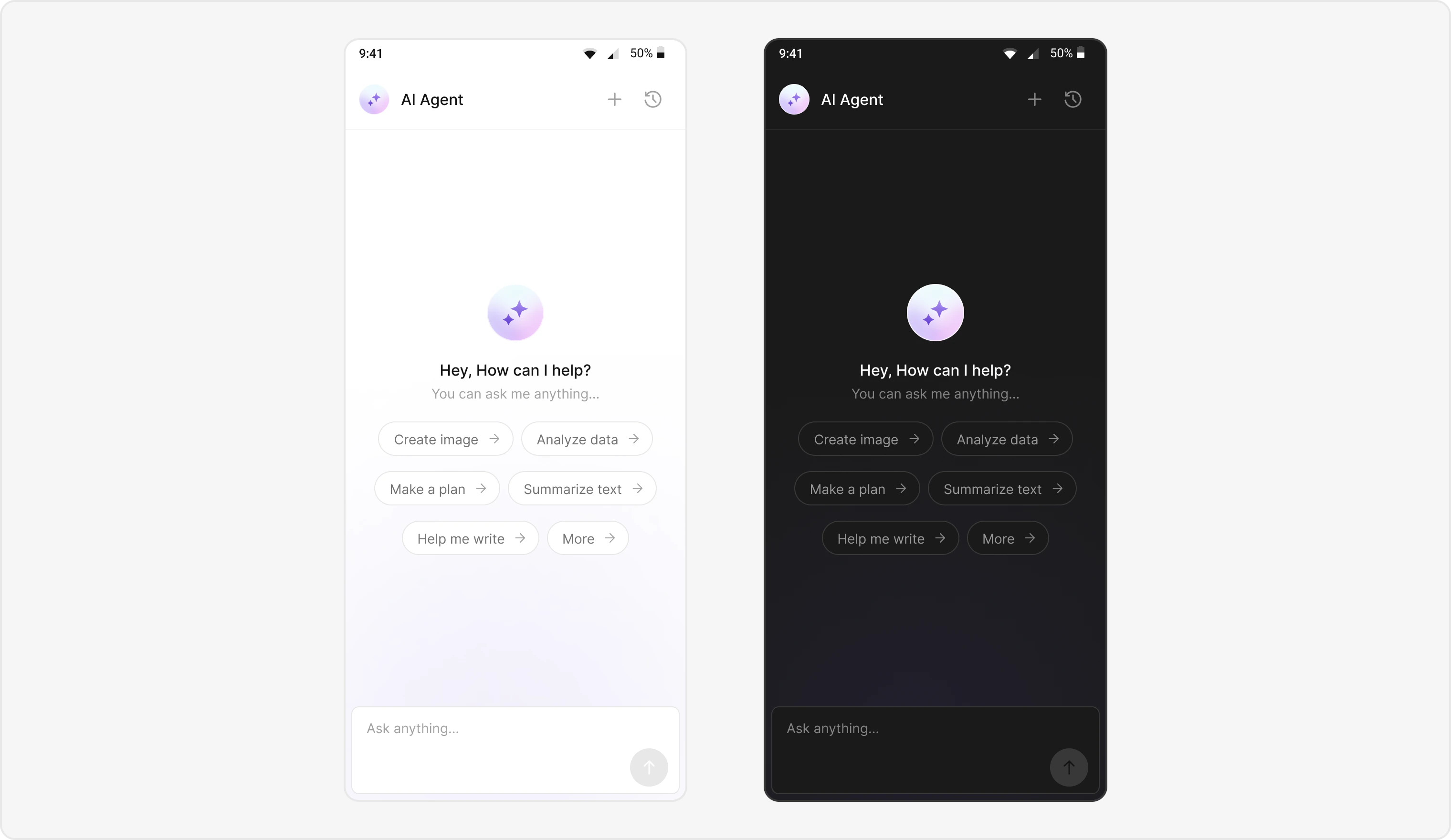
Overview Users can interact with AI agents through a dedicated chat interface that:
Provides intelligent responses based on conversation context.
Maintains chat history for continuity.
Seamlessly integrates with your existing user chat system.
The AI Agent chat interface provides a familiar messaging experience enhanced with AI capabilities, accessible through your main chat flow or as a standalone feature.
Prerequisites
Android Studio project with com.cometchat:chatuikit-kotlin-android or com.cometchat:chatuikit-compose-android in build.gradle.
Internet permission in AndroidManifest.xml.
Valid CometChat App ID , Region , and Auth Key configured via UIKitSettings.
User logged in with CometChatUIKit.login().
AI Agent configured in your CometChat dashboard.
Components Component / Class Role AIAssistantChatActivityMain activity for AI agent chat. CometChatAIAssistantChatHistoryDisplays previous AI conversation history. CometChatMessageListShows AI messages with threading support. CometChatMessageComposerInput interface for AI conversations. CometChatMessageHeaderHeader with AI agent info and controls.
Integration Steps Step 1 — Activity / Screen Setup Create the AI Assistant chat screen with proper layout configuration.
Kotlin (XML Views)
Jetpack Compose
AIAssistantChatActivity.kt
class AIAssistantChatActivity : AppCompatActivity () { private lateinit var binding: ActivityAiAssistantChatBinding override fun onCreate (savedInstanceState: Bundle ?) { super . onCreate (savedInstanceState) binding = ActivityAiAssistantChatBinding. inflate (layoutInflater) setContentView (binding.root) val messageJson = intent. getStringExtra ( getString (R.string.app_base_message)) val userJson = intent. getStringExtra ( getString (R.string.app_user)) var user: User ? = null var parentMessage: BaseMessage ? = null if ( ! userJson. isNullOrEmpty ()) user = User. fromJson (userJson) if ( ! messageJson. isNullOrEmpty ()) parentMessage = BaseMessage. processMessage ( JSONObject (messageJson)) initializeComponents (user, parentMessage) initClickListeners () } private fun initializeComponents (user: User ?, parentMessage: BaseMessage ?) { user?. let { binding.messageHeader.user = it binding.messageList.user = it binding.messageComposer.user = it } if (parentMessage != null ) { binding.messageList. setParentMessage (parentMessage. getId ()) binding.messageComposer. setParentMessageId (parentMessage. getId ()) } binding.messageList. setStyle (R.style.CustomCometChatMessageListStyle) binding.messageComposer.style = R.style.CustomMessageComposerStyle } }
import com.cometchat.uikit.compose.presentation.messageheader.ui.CometChatMessageHeader import com.cometchat.uikit.compose.presentation.messagelist.ui.CometChatMessageList import com.cometchat.uikit.compose.presentation.messagecomposer.ui.CometChatMessageComposer @Composable fun AIAssistantChatScreen ( user: User , parentMessageId: Int ? = null , onNewChatClick: () -> Unit = {}, onChatHistoryClick: () -> Unit = {} ) { Column (modifier = Modifier. fillMaxSize ()) { CometChatMessageHeader ( user = user ) CometChatMessageList ( user = user, parentMessageId = parentMessageId ?: 0 , modifier = Modifier. weight ( 1f ) ) CometChatMessageComposer ( user = user, parentMessageId = parentMessageId ?: 0 ) } }
File reference:
AIAssistantChatActivity.ktStep 2 — Layout (XML Views only) Add CometChatMessageHeader, CometChatMessageList, and CometChatMessageComposer to your layout.
activity_ai_assistant_chat.xml
< LinearLayout android:layout_width = "match_parent" android:layout_height = "match_parent" android:orientation = "vertical" xmlns:android = "http://schemas.android.com/apk/res/android" > < com.cometchat.uikit.kotlin.presentation.messageheader.ui.CometChatMessageHeader android:id = "@+id/messageHeader" android:layout_width = "match_parent" android:layout_height = "wrap_content" /> < com.cometchat.uikit.kotlin.presentation.messagelist.ui.CometChatMessageList android:id = "@+id/messageList" android:layout_width = "match_parent" android:layout_height = "0dp" android:layout_weight = "1" /> < com.cometchat.uikit.kotlin.presentation.messagecomposer.ui.CometChatMessageComposer android:id = "@+id/messageComposer" android:layout_width = "match_parent" android:layout_height = "wrap_content" /> </ LinearLayout >
Note: In Jetpack Compose, layout is handled declaratively in the composable function — no XML needed.
Step 3 — Style of Message List & Composer (XML Views only) Define custom styles for the message list and composer to differentiate AI agent chats.
< style name = "CustomMessageComposerStyle" > < item name = "cometchatMessageComposerBackgroundColor" > ?attr/cometchatBackgroundColor2 </ item > < item name = "cometchatMessageComposerComposeBoxStrokeWidth" > @dimen/cometchat_1dp </ item > < item name = "cometchatMessageComposerComposeBoxCornerRadius" > @dimen/cometchat_radius_2 </ item > < item name = "cometchatMessageInputStyle" > ?attr/cometchatMessageInputStyle </ item > </ style > < style name = "CustomCometChatMessageListStyle" parent = "CometChatMessageListStyle" > < item name = "cometchatMessageListOutgoingMessageBubbleStyle" > @style/CustomOutgoingMessageBubbleStyle </ item > </ style > < style name = "CustomOutgoingMessageBubbleStyle" > < item name = "cometchatMessageBubbleBackgroundColor" > ?attr/cometchatBackgroundColor4 </ item > < item name = "cometchatMessageBubbleCornerRadius" > @dimen/cometchat_radius_3 </ item > < item name = "cometchatTextBubbleStyle" > @style/CustomTextBubbleStyle </ item > < item name = "cometchatMessageBubbleDateStyle" > @style/CustomOutgoingMessageDateStyle </ item > </ style >
Jetpack Compose: Pass a custom style object via the style parameter on each composable instead of XML styles.
Step 4 — Initialize click listeners Initialize click listeners to handle new chat creation and chat history access.
Kotlin (XML Views)
Jetpack Compose
AIAssistantChatActivity.kt
private fun initClickListeners () { // New chat creation binding.messageHeader. setNewChatButtonClick { Utils. hideKeyBoard ( this@AIAssistantChatActivity , binding.root) val intent = Intent ( this@AIAssistantChatActivity , AIAssistantChatActivity:: class .java) intent. putExtra ( getString (R.string.app_user), user. toJson (). toString ()) startActivity (intent) finish () } // Chat history access binding.messageHeader. setChatHistoryButtonClick { val intent = Intent ( this@AIAssistantChatActivity , AIAssistantChatHistoryActivity:: class .java) intent. putExtra ( getString (R.string.app_user), user. toJson (). toString ()) startActivity (intent) } }
// In Jetpack Compose, pass callbacks as lambda parameters: AIAssistantChatScreen ( user = aiUser, onNewChatClick = { // Navigate to a fresh AI chat screen navController. navigate ( "ai_chat/ ${ Gson (). toJson (aiUser) } " ) }, onChatHistoryClick = { // Navigate to chat history screen navController. navigate ( "ai_chat_history/ ${ Gson (). toJson (aiUser) } " ) } )
Step 5 — AI Assistant Chat History screen Create a screen to host the CometChatAIAssistantChatHistory component.
Kotlin (XML Views)
Jetpack Compose
AIAssistantChatHistoryActivity.kt
class AIAssistantChatHistoryActivity : AppCompatActivity () { private lateinit var binding: ActivityAiAssistantChatHistoryBinding private var user: User ? = null override fun onCreate (savedInstanceState: Bundle ?) { super . onCreate (savedInstanceState) binding = ActivityAiAssistantChatHistoryBinding. inflate (layoutInflater) setContentView (binding.root) val userJson = intent. getStringExtra ( getString (R.string.app_user)) if (userJson != null && userJson. isNotEmpty ()) { user = User. fromJson (userJson) binding.cometchatAiAssistantChatHistory. setUser (user) } initClickListeners () } private fun initClickListeners () { binding.cometchatAiAssistantChatHistory. setOnItemClickListener { view, position, message -> val appEntity = message. getReceiver () if (appEntity is User) { user = appEntity val intent = Intent ( this , AIAssistantChatActivity:: class .java) intent. putExtra ( getString (R.string.app_user), appEntity. toJson (). toString ()) intent. putExtra ( getString (R.string.app_base_message), message. getRawMessage (). toString ()) startActivity (intent) finish () } } binding.cometchatAiAssistantChatHistory. setOnNewChatClickListener { val intent = Intent ( this , AIAssistantChatActivity:: class .java) intent. putExtra ( getString (R.string.app_user), user !! . toJson (). toString ()) startActivity (intent) finish () } binding.cometchatAiAssistantChatHistory. setOnCloseClickListener { finish () } } }
AIAssistantChatHistoryScreen.kt
import com.cometchat.uikit.compose.presentation.aiassistantchathistory.ui.CometChatAIAssistantChatHistory @Composable fun AIAssistantChatHistoryScreen ( user: User , navController: NavController ) { CometChatAIAssistantChatHistory ( modifier = Modifier. fillMaxSize (), onCloseClick = { navController. popBackStack () }, onNewChatClick = { navController. navigate ( "ai_chat/ ${ Gson (). toJson (user) } " ) }, onItemClick = { message -> val receiver = message.receiver if (receiver is User) { navController. navigate ( "ai_chat/ ${ Gson (). toJson (receiver) } / ${ message.rawMessage } " ) } } ) }
Step 6 — Chat History layout (XML Views only) activity_ai_assistant_chat_history.xml
< LinearLayout android:layout_width = "match_parent" android:layout_height = "match_parent" xmlns:android = "http://schemas.android.com/apk/res/android" > < com.cometchat.uikit.kotlin.presentation.aiassistantchathistory.ui.CometChatAIAssistantChatHistory android:id = "@+id/cometchat_ai_assistant_chat_history" android:layout_width = "match_parent" android:layout_height = "match_parent" /> </ LinearLayout >
Note: In Jetpack Compose, the CometChatAIAssistantChatHistory composable is used directly — no XML layout needed.
Step 7 — Launching AI Chat Kotlin (XML Views)
Jetpack Compose
fun launchAIAssistantChat (aiUser: User ) { val intent = Intent ( this , AIAssistantChatActivity:: class .java) intent. putExtra ( getString (R.string.app_user), aiUser. toJson (). toString ()) startActivity (intent) }
// In your NavHost setup: composable ( "ai_chat/{userJson}" ) { backStackEntry -> val userJson = backStackEntry.arguments?. getString ( "userJson" ) val user = Gson (). fromJson (userJson, User:: class .java) AIAssistantChatScreen (user = user) } composable ( "ai_chat_history/{userJson}" ) { backStackEntry -> val userJson = backStackEntry.arguments?. getString ( "userJson" ) val user = Gson (). fromJson (userJson, User:: class .java) AIAssistantChatHistoryScreen (user = user, navController = navController) }
Implementation Flow Summary Step Action 1 User selects AI agent from chat list 2 AI chat screen launches 3 Parse intent data and detect agent chat (Role of user must be “@agentic”) 4 Initialize UI with AI-specific styling 5 Configure chat history and navigation 6 Launch chat with AI agent
Customization Options
Custom AI Assistant Empty Chat View: Customize the empty state view using setAIAssistantEmptyChatGreetingView() (XML Views) or the emptyView composable slot (Compose).Streaming Speed: Adjust AI response streaming speed via setStreamingSpeed().AI Assistant Suggested Messages: Create custom list of suggested messages using setAIAssistantSuggestedMessages().AI Assistant Tools: Set tools for the AI agent using setAIAssistantTools().
Feature Matrix Feature Kotlin (XML Views) Jetpack Compose AI Chat Interface AIAssistantChatActivityAIAssistantChatScreen composableChat History CometChatAIAssistantChatHistory XMLCometChatAIAssistantChatHistory() composableMessage List CometChatMessageList XMLCometChatMessageList() composableMessage Composer CometChatMessageComposer XMLCometChatMessageComposer() composable
Android Sample App (Kotlin) Explore this feature in the CometChat SampleApp:
GitHub → SampleApp