Documentation Index Fetch the complete documentation index at: https://cometchat-22654f5b-docs-android-v6-beta2.mintlify.app/llms.txt
Use this file to discover all available pages before exploring further.
AI Integration Quick Reference
Field Value Package CometChatUIKitSwiftFramework UIKit / SwiftUI Components CometChatConversations, CometChatCallLogs, CometChatUsers, CometChatGroups, CometChatMessageHeader, CometChatMessageList, CometChatMessageComposerLayout UITabBarController with Chats, Calls, Users, Groups tabs Prerequisite Complete iOS Integration Steps 1–4 first Pattern Full-featured messaging app with multiple sections
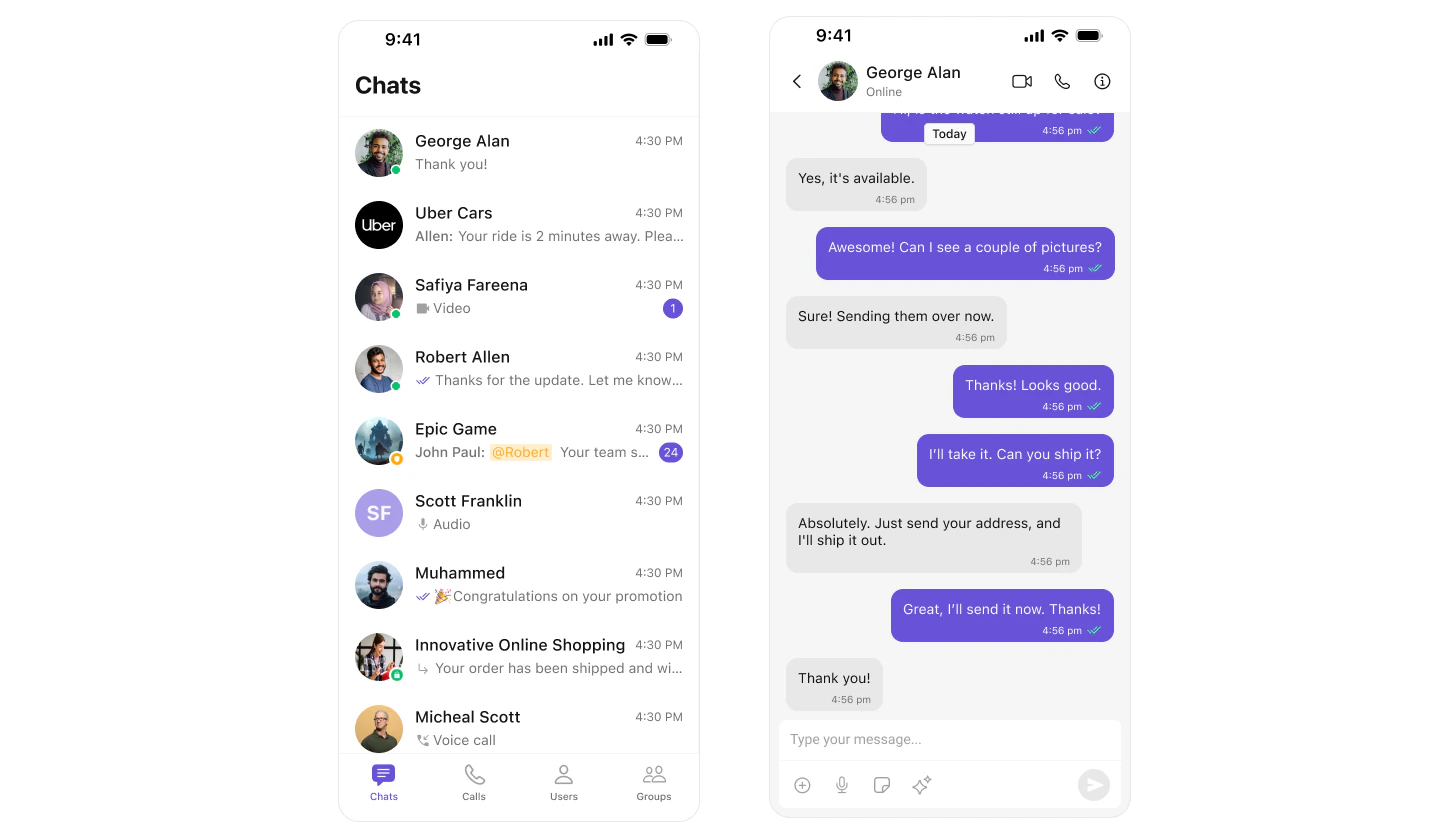
This guide builds a tabbed messaging UI — Chats, Calls, Users, and Groups tabs using UITabBarController. Good for full-featured apps that need more than just conversations.
This assumes you’ve already completed iOS Integration (project created, UI Kit installed, init + login working, permissions configured).
What You’re Building Four tabs working together:
Chats — conversation list with push navigation to messagesCalls — call logs historyUsers — list of available usersGroups — list of available groups
Step 1 — Setup SceneDelegate Initialize CometChat and launch the tabbed view after login.
import UIKit import CometChatUIKitSwift import CometChatSDK func scene ( _ scene : UIScene, willConnectTo session : UISceneSession, options connectionOptions : UIScene.ConnectionOptions) { guard let windowScene = (scene as? UIWindowScene) else { return } let uikitSettings = UIKitSettings () . set ( appID : "APP_ID" ) // Replace with your App ID . set ( region : "REGION" ) // Replace with your Region . set ( authKey : "AUTH_KEY" ) // Replace with your Auth Key (dev only) . subscribePresenceForAllUsers () . build () CometChatUIKit. init ( uiKitSettings : uikitSettings) { result in switch result { case . success : CometChatUIKit. login ( uid : "cometchat-uid-1" ) { loginResult in switch loginResult { case . success : DispatchQueue. main . async { self . setupTabbedView ( windowScene : windowScene) } default : break } } default : break } } } Step 2 — Setup Tab Bar Create the UITabBarController with all four tabs. Each tab has its own navigation controller.
func setupTabbedView ( windowScene : UIWindowScene) { let tabBarController = UITabBarController () tabBarController. tabBar . backgroundColor = . white // MARK: - Conversations Tab let conversationsVC = CometChatConversations () let conversationsNav = UINavigationController ( rootViewController : conversationsVC) conversationsVC. tabBarItem = UITabBarItem ( title : "CHATS" , image : UIImage ( systemName : "message.fill" ), tag : 0 ) conversationsVC. set ( onItemClick : { [ weak conversationsNav] conversation, indexPath in let messagesVC = MessagesVC () messagesVC. group = conversation. conversationWith as? Group messagesVC. user = conversation. conversationWith as? User messagesVC. hidesBottomBarWhenPushed = true conversationsNav ? . pushViewController (messagesVC, animated : true ) }) // MARK: - Call Logs Tab let callLogsVC = CometChatCallLogs () let callLogsNav = UINavigationController ( rootViewController : callLogsVC) callLogsVC. tabBarItem = UITabBarItem ( title : "CALLS" , image : UIImage ( systemName : "phone.fill" ), tag : 1 ) // MARK: - Users Tab let usersVC = CometChatUsers () let usersNav = UINavigationController ( rootViewController : usersVC) usersVC. tabBarItem = UITabBarItem ( title : "USERS" , image : UIImage ( systemName : "person.2.fill" ), tag : 2 ) // MARK: - Groups Tab let groupsVC = CometChatGroups () let groupsNav = UINavigationController ( rootViewController : groupsVC) groupsVC. tabBarItem = UITabBarItem ( title : "GROUPS" , image : UIImage ( systemName : "person.3.fill" ), tag : 3 ) tabBarController. viewControllers = [ conversationsNav, callLogsNav, usersNav, groupsNav ] tabBarController. extendedLayoutIncludesOpaqueBars = true window = UIWindow ( windowScene : windowScene) window ? . rootViewController = tabBarController window ? . makeKeyAndVisible () }
Key points:
Each tab wraps its view controller in a UINavigationController for push navigation
onItemClick on conversations pushes to the messages viewhidesBottomBarWhenPushed = true hides the tab bar when viewing messagesSF Symbols are used for tab icons — customize as needed
Step 3 — Create MessagesVC Create a new Swift file for the messages view controller:
In Xcode, right-click your project folder in the Navigator
Select New File…
Choose Swift File and click Next
Name it MessagesVC.swift and click Create
Add the following code. This view controller assembles the header, message list, and composer.
import UIKit import CometChatSDK import CometChatUIKitSwift class MessagesVC : UIViewController { // MARK: - Properties var user: User ? var group: Group ? // MARK: - UI Components private lazy var headerView: CometChatMessageHeader = { let view = CometChatMessageHeader () view. translatesAutoresizingMaskIntoConstraints = false if let user = user { view. set ( user : user) } else if let group = group { view. set ( group : group) } view. set ( controller : self ) return view }() private lazy var messageListView: CometChatMessageList = { let listView = CometChatMessageList () listView. translatesAutoresizingMaskIntoConstraints = false if let user = user { listView. set ( user : user) } else if let group = group { listView. set ( group : group) } listView. set ( controller : self ) return listView }() private lazy var composerView: CometChatMessageComposer = { let composer = CometChatMessageComposer () composer. translatesAutoresizingMaskIntoConstraints = false if let user = user { composer. set ( user : user) } else if let group = group { composer. set ( group : group) } composer. set ( controller : self ) return composer }() // MARK: - Lifecycle override func viewDidLoad () { super . viewDidLoad () configureView () setupLayout () } override func viewWillDisappear ( _ animated : Bool ) { super . viewWillDisappear (animated) navigationController ? . setNavigationBarHidden ( false , animated : true ) } // MARK: - Setup private func configureView () { view. backgroundColor = . systemBackground navigationController ? . setNavigationBarHidden ( true , animated : false ) } private func setupLayout () { [headerView, messageListView, composerView]. forEach { view. addSubview ( $0 ) } NSLayoutConstraint. activate ([ // Header headerView. topAnchor . constraint ( equalTo : view. safeAreaLayoutGuide . topAnchor ), headerView. leadingAnchor . constraint ( equalTo : view. leadingAnchor ), headerView. trailingAnchor . constraint ( equalTo : view. trailingAnchor ), headerView. heightAnchor . constraint ( equalToConstant : 50 ), // Message list messageListView. topAnchor . constraint ( equalTo : headerView. bottomAnchor ), messageListView. leadingAnchor . constraint ( equalTo : view. leadingAnchor ), messageListView. trailingAnchor . constraint ( equalTo : view. trailingAnchor ), messageListView. bottomAnchor . constraint ( equalTo : composerView. topAnchor ), // Composer composerView. leadingAnchor . constraint ( equalTo : view. leadingAnchor ), composerView. trailingAnchor . constraint ( equalTo : view. trailingAnchor ), composerView. bottomAnchor . constraint ( equalTo : view. safeAreaLayoutGuide . bottomAnchor ) ]) } }
Step 4 — Run the Project Build and run in Xcode. You should see the tab bar at the bottom with Chats, Calls, Users, and Groups. Tap any conversation to push to the messages view.
Next Steps
Theming Customize colors, fonts, and styles to match your brand
Components Overview Browse all prebuilt UI components
iOS Integration Back to the main setup guide
Core Features Chat features included out of the box