Documentation Index Fetch the complete documentation index at: https://cometchat-22654f5b-docs-android-v6-beta2.mintlify.app/llms.txt
Use this file to discover all available pages before exploring further.
AI Integration Quick Reference
Field Value Package @cometchat/chat-uikit-reactFramework Astro (with @astrojs/react islands) Components CometChatConversations, CometChatMessageHeader, CometChatMessageList, CometChatMessageComposerLayout Two-panel — conversation list (left) + message view (right) Prerequisite Complete Astro Integration Steps 1–5 first SSR client:only="react" directive — CometChat requires browser APIsPattern WhatsApp Web, Slack, Microsoft Teams
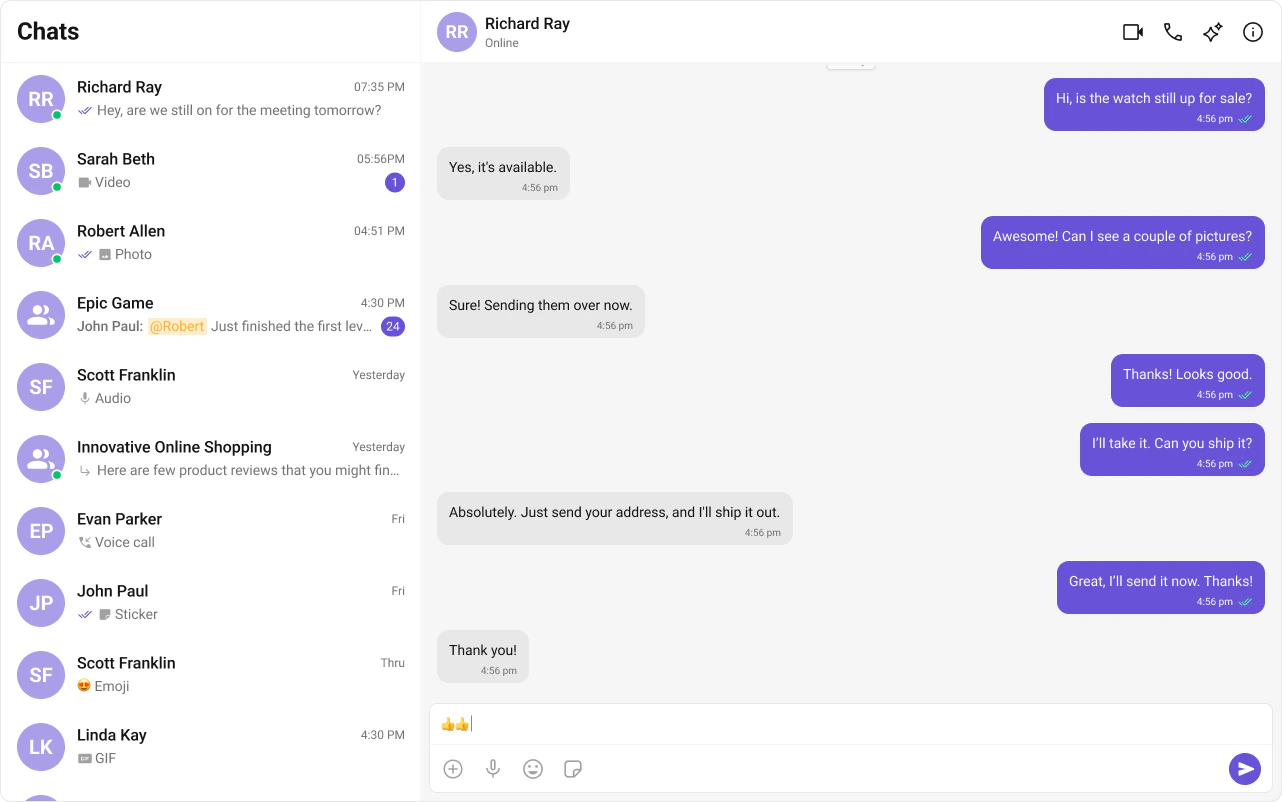
This guide builds a two-panel chat layout — conversation list on the left, messages on the right. Users tap a conversation to open it.
This assumes you’ve already completed Astro Integration (project created, React added, UI Kit installed).
What You’re Building Three sections working together:
Sidebar (conversation list) — shows all active conversations (users and groups)Message view — displays chat messages for the selected conversation in real timeMessage composer — text input with support for media, emojis, and reactions
Step 1 — Create the React Island Create a ChatApp component inside src/components/. This is a React island that handles init, login, and renders the full chat experience.
import { useEffect , useState } from "react" ; import { CometChatConversations , CometChatMessageComposer , CometChatMessageHeader , CometChatMessageList , CometChatUIKit , UIKitSettingsBuilder , } from "@cometchat/chat-uikit-react" ; import { CometChat } from "@cometchat/chat-sdk-javascript" ; import "@cometchat/chat-uikit-react/css-variables.css" ; import "./ChatApp.css" ; const COMETCHAT_CONSTANTS = { APP_ID: "" , // Replace with your App ID REGION: "" , // Replace with your Region AUTH_KEY: "" , // Replace with your Auth Key (dev only) }; const UID = "cometchat-uid-1" ; // Replace with your actual UID export default function ChatApp () { const [ user , setUser ] = useState < CometChat . User | undefined >( undefined ); const [ selectedUser , setSelectedUser ] = useState < CometChat . User | undefined >( undefined ); const [ selectedGroup , setSelectedGroup ] = useState < CometChat . Group | undefined >( undefined ); useEffect (() => { const UIKitSettings = new UIKitSettingsBuilder () . setAppId ( COMETCHAT_CONSTANTS . APP_ID ) . setRegion ( COMETCHAT_CONSTANTS . REGION ) . setAuthKey ( COMETCHAT_CONSTANTS . AUTH_KEY ) . subscribePresenceForAllUsers () . build (); CometChatUIKit . init ( UIKitSettings ) . then (() => { console . log ( "Initialization completed successfully" ); CometChatUIKit . getLoggedinUser (). then (( loggedInUser ) => { if ( ! loggedInUser ) { CometChatUIKit . login ( UID ) . then (( u ) => { console . log ( "Login Successful" , { u }); setUser ( u ); }) . catch (( error ) => console . error ( "Login failed" , error )); } else { console . log ( "Already logged-in" , { loggedInUser }); setUser ( loggedInUser ); } }); }) . catch (( error ) => console . error ( "Initialization failed" , error )); }, []); if ( ! user ) return < div > Initializing Chat... </ div > ; return ( < div className = "conversations-with-messages" > < div className = "conversations-wrapper" > < CometChatConversations onItemClick = { ( activeItem ) => { let item : any = activeItem ; if ( activeItem instanceof CometChat . Conversation ) { item = activeItem . getConversationWith (); } if ( item instanceof CometChat . User ) { setSelectedUser ( item ); setSelectedGroup ( undefined ); } else if ( item instanceof CometChat . Group ) { setSelectedUser ( undefined ); setSelectedGroup ( item ); } else { setSelectedUser ( undefined ); setSelectedGroup ( undefined ); } } } /> </ div > { selectedUser || selectedGroup ? ( < div className = "messages-wrapper" > < CometChatMessageHeader user = { selectedUser } group = { selectedGroup } /> < CometChatMessageList user = { selectedUser } group = { selectedGroup } /> < CometChatMessageComposer user = { selectedUser } group = { selectedGroup } /> </ div > ) : ( < div className = "empty-conversation" > Select a conversation to start chatting </ div > ) } </ div > ); } .conversations-with-messages { display : flex ; height : 100 % ; width : 100 % ; } .conversations-wrapper { height : 100 % ; width : 480 px ; overflow : hidden ; display : flex ; flex-direction : column ; } .conversations-wrapper > .cometchat { overflow : hidden ; } .messages-wrapper { width : calc ( 100 % - 480 px ); height : 100 % ; display : flex ; flex-direction : column ; } .empty-conversation { height : 100 % ; width : 100 % ; display : flex ; justify-content : center ; align-items : center ; background : var ( --cometchat-background-color-03 , #F5F5F5 ); color : var ( --cometchat-text-color-secondary , #727272 ); font : var ( --cometchat-font-body-regular , 400 14 px Roboto); } .cometchat .cometchat-message-composer { border-radius : 0 px ; }
How it works :
Init and login happen inside useEffect — the component only renders chat UI after login resolves.
When a conversation is tapped, the User or Group is extracted from the Conversation object.
selectedUser / selectedGroup state drives which chat is displayed — pass either user or group to the message components, never both.
Step 2 — Render the Astro Page Import the island and hydrate it client-side using client:only="react".
--- import ChatApp from "../components/ChatApp.tsx" ; import "../styles/globals.css" ; --- < html lang = "en" > < head > < meta charset = "utf-8" /> < title > CometChat + Astro </ title > </ head > < body > < ChatApp client:only = "react" /> </ body > </ html >
The client:only="react" directive ensures the component skips SSR entirely and only renders in the browser — required because CometChat needs window and WebSocket.
Step 3 — Run the Project You should see the conversation list on the left. Tap any conversation to load messages on the right.
Next Steps
Theming Customize colors, fonts, and styles to match your brand
Components Overview Browse all prebuilt UI components
Astro Integration Back to the main setup guide
Core Features Chat features included out of the box